
About Schedule Map Maker Browser-only IMSA routing tools

IMSA Navigation

Schedule Map Maker

EPOCH logo

Project

This site generates building routes from an IMSA schedule, a direct start-to-destination path, or a single room lookup. It builds on IMSA Code Society's original classroom finder and is maintained as an EPOCH project.

Schedule parsing, room lookup, and route generation run in the browser against static assets, so schedule text does not need to be sent to a server.
Schedule Import
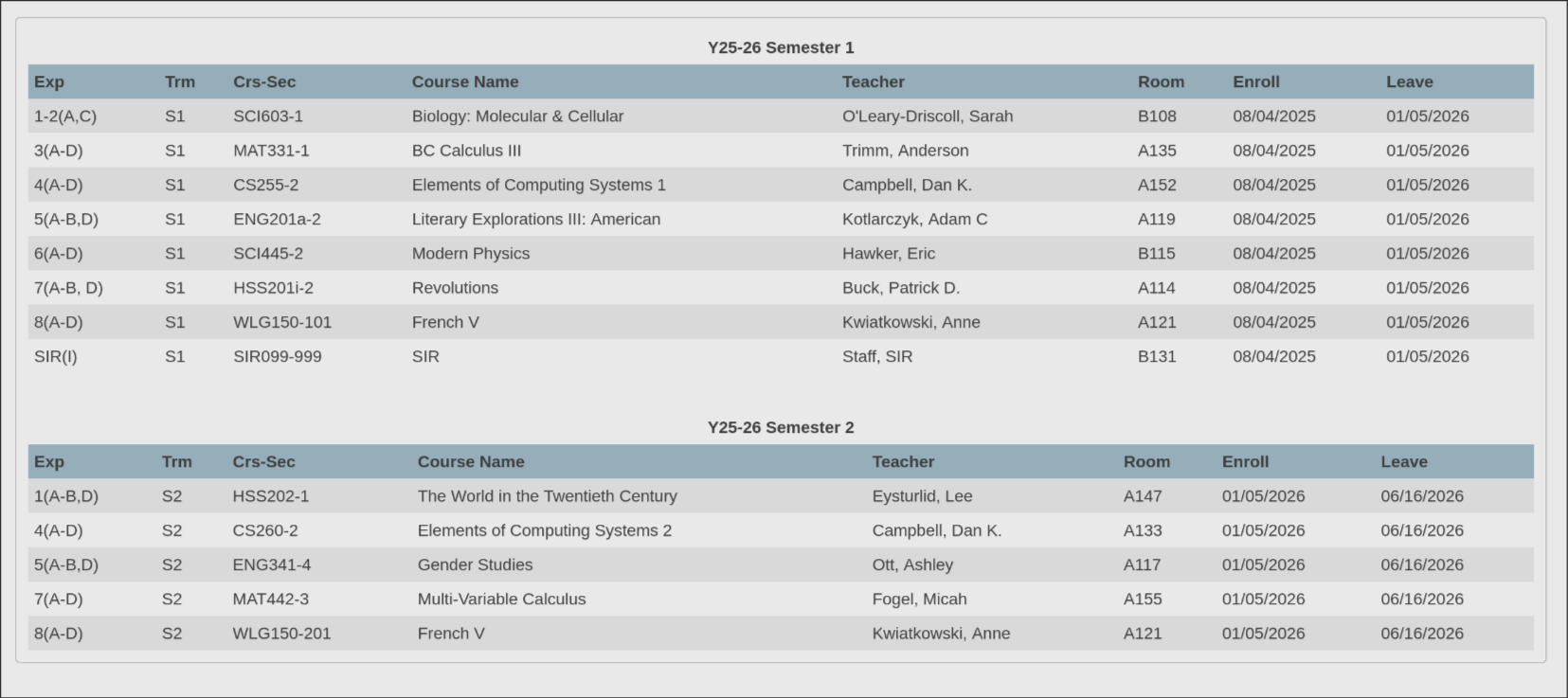
  1. Open the schedule mapper and use Open PowerSchool to go to the Year Schedule page.
  2. Copy both semester sections, including each semester title and the column header row.
  3. Paste the copied text into Schedule Text, or use Paste if the schedule is already on your clipboard.
  4. Check the validation summary. If a room is flagged, use the suggested correction or report the missing room.
  5. Choose the semester, day, entrance, exit, and Lexington stop setting.
  6. Press Generate Map. After the map appears, use Fit, zoom, pan, or the route list to inspect paths.
PowerSchool Year Schedule copy area
Bookmarklet Import
  1. Open the schedule mapper and press Bookmarklet.
  2. Drag Import Schedule Map to your browser bookmarks bar, or use Copy if your browser blocks dragging.
  3. Log into PowerSchool and open the Year Schedule page.
  4. Click the bookmarklet from your bookmarks bar while you are on the Year Schedule page.
  5. The schedule mapper opens with the copied schedule text loaded. Review validation, then generate the map.
Direct Path Finder
  1. Open Room-to-room path.
  2. Type in Start and Destination, then choose matching rooms from the dropdown.
  3. Use Swap if the route direction is backwards.
  4. Press Find Path. The panel closes and the route is drawn on the map.
  5. Use Fit, zoom, pan, Save, favorites, or the shareable URL to reuse the route.
Room Finder
  1. Open Find a room.
  2. Type a room, entrance, or common alias such as Lexington or Door 13.
  3. Choose the matching dropdown entry and press Find Room.
  4. The panel closes, the map centers on the room, and the marker label shows the selected location.
  5. Use Fit, Save, favorites, or the shareable URL to return to the same room later.
Troubleshooting

If schedule import fails, re-copy the full Year Schedule and verify both semesters are included. If a room is missing or a path looks wrong, file an issue in the project repository with the room name and page where it happened.

Map Data

Maintainers can use the internal map data editor to inspect nodes and adjust route data before committing changes.

Open Map Data Editor
License

This project is licensed under the MIT License.